Chain chart
The chart shows your chain the way it acts on the price: the candles of your pair, the lines, bands, levels and zones of all nodes, oscillators such as the RSI in their own panes below, and the spots where the chain would have sent an alert. You adjust what you see right there and add new conditions or a price alert with a right-click.
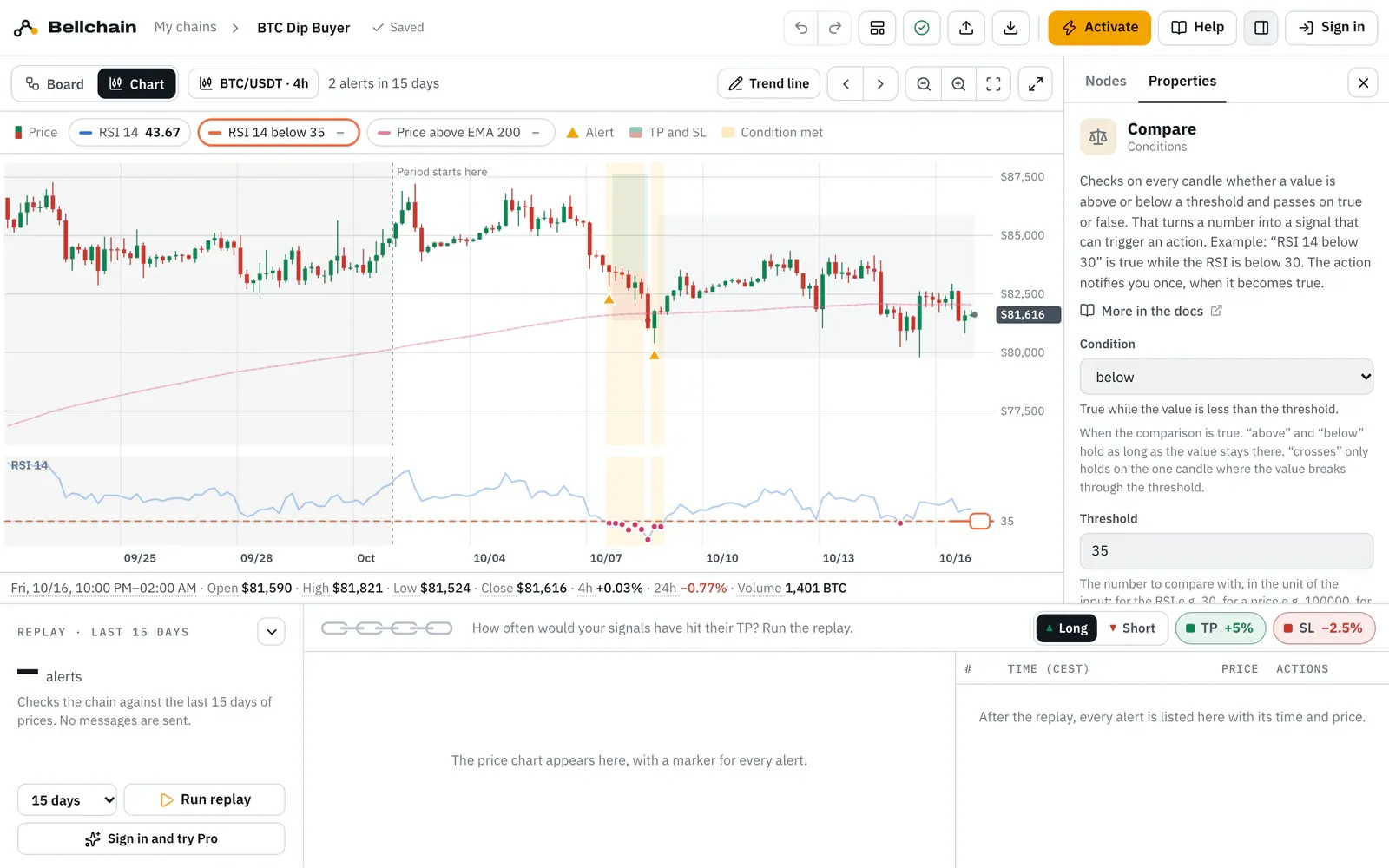
- Board and Chart switch.
- Pair and timeframe: selects the candle, where you change both.
- Legend: a click selects the node.
- Alert below the candle.
- Handle of the selected threshold.
Open the chart
Section titled “Open the chart”- Top left above the board you switch between Board and Chart. The editor remembers which one you used last.
- On a node’s chart in the properties, Enlarge (bottom right in the chart) opens the chart with this node, see Chart above the price.
You don’t need a replay for it: the chart loads the candles itself and runs the chain in your browser.
What the chart shows
Section titled “What the chart shows”- Candles of your pair over the replay period: without an account and with Free 15 days, with Pro 90 days, with Trader one year, at most 2,400 candles. With short timeframes it shows the last 2,400, and the bar says so. The chart only shows closed candles, like the alerts, and adds the new one shortly after each candle close while it’s open. While the tab is in the background it waits until you open it again; if reloading fails, the current candles stay.
- Layers of the nodes in the price pane: lines such as the EMA 200, bands, channels, levels and zones, each in its own color. Oscillators such as RSI or Stochastic sit in panes below, with their thresholds on the axis.
- Alerts as a triangle below the candle where the chain would have reported. A hollow triangle is a change the cooldown of an action held back.
- Condition met: the light area shows where the condition before the action is true. An alert comes at the start of such an area, when the condition changes from false to true, not on every candle inside it.
- Period starts here: with short periods the chart also shows candles before it, on a gray background, so you can place the price. Alerts don’t count there.
- Legend: every layer with its color, name and the value at the candle under the crosshair. Conditions carry a check mark when they are met on that candle.
- Time: the crosshair shows the candle’s span, for example “10/22 06:00 PM–06:15 PM”. The end is the candle close that the alert names too.
The number of alerts in the bar is the same as in the replay over the same period.
The line below the chart
Section titled “The line below the chart”Below the chart you find everything about the candle under the crosshair, or about the latest candle without a crosshair. An example with 4h candles:
| In the line | Meaning |
|---|---|
| Wed, 10/07, 02:00 PM–06:00 PM | The candle from its open to its close. The close is the time the alert names too (“4h close · 6:00 PM”). |
| Open, High, Low, Close | First, highest, lowest and last price in the candle. |
| 4h −0.34% | Change from the close of the previous candle. The candle’s timeframe comes first. |
| 24h −2.64% | Change over 24 hours up to the close of this candle, as exchanges show it. From daily candles on it covers a longer period: 7d for 1d, 30d for 3d, 4w for 1w, 12M for 1M. |
| Volume 4,765 BTC | How much of the coin was traded in the candle. |
| ▲ Alert: Telegram, Push | On the right, what happened at the candle: an alert with its actions, △ held back by the cooldown or Condition met. |
- Colors: rising values are green with a plus, falling ones red with a minus. The sign is always there, so you can read it without color too.
- Missing candles: if the candle a change is measured against is missing, say at the far left of the chart or in a gap in the prices, the value is missing too. It is never measured against another candle.
- Explanations: every part of the line has a short explanation, marked by the dotted line. Point at it with the mouse, tap it on a phone, or Tab into the line and move from part to part with the arrow keys; Esc closes the explanation. A screen reader reads it as the description of the part.
- Little space: when the line gets too narrow, the volume goes first, then open, high and low. On a phone you see the time, the price and the changes, and at an alert the note gets shorter, such as ▲ Telegram, Push. A screen reader always reads the whole line in full, without the explanations while you move the crosshair.
Adjust in the chart
Section titled “Adjust in the chart”- Select a node: click its line or its name in the legend. It comes to the front, the others step back, and its properties show on the right.
- Drag: grab a line of the selected node, such as a threshold or the edge of a band, or the handle at the right edge. Alerts and areas follow while you drag. With the smart money nodes you drag the bracket at the latest swing, the gauge at the right edge and the band around the middle, as in the small chart.
- Keyboard: Tab takes you to the handles, the arrow keys move them, with Shift in bigger steps.
- Pair and timeframe: the button with the pair, such as BTC/USDT · 4h, selects the candle. In its properties you change pair and timeframe, and the chart reloads.
Every change in the chart is a regular change to the chain: it is saved and can be undone with ⌘/Ctrl + Z.
Conditions from the chart
Section titled “Conditions from the chart”A right-click at a spot in the chart opens the rules for that spot; on a phone you long-press, with the keyboard you press Shift + F10.
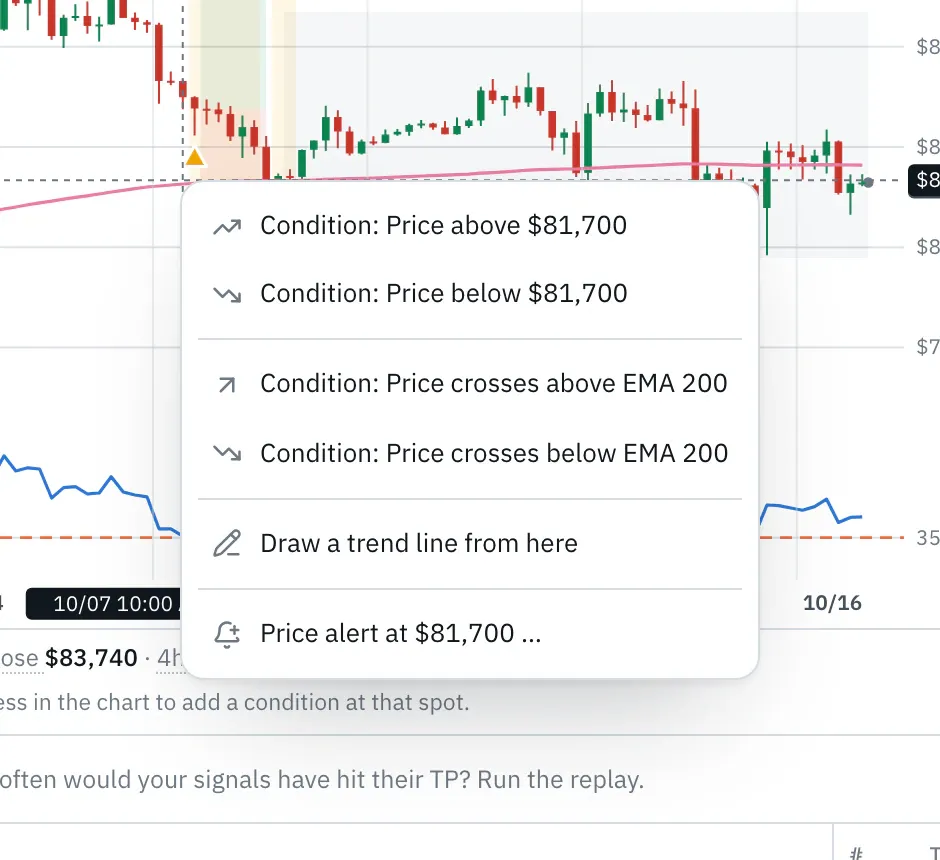
- In the price pane: “Condition: Price above $81,700” or “below”. If a line such as the EMA 200 is close, also “Price crosses above EMA 200” or “below”.
- In an oscillator pane: set a threshold that already applies there to this spot, such as “Set “RSI 14 below 35” to 42”, or a new condition such as “RSI 14 above 60”.
Where the new condition goes:
- If your actions hang on an AND, it becomes another input: the chain then only reports when the new condition is met too.
- If they hang on a single condition, the editor adds a new AND with the previous and the new condition.
- If there is no action or the actions hang on different conditions, the new condition sits at the bottom of the board, and you connect it yourself.
Afterwards the new condition is selected: drag its line to adjust the value.
Price alert from the chart
Section titled “Price alert from the chart”When you are signed in, the menu in the price pane ends with Price alert at $81,700 …. It leaves this chain alone and opens the price alert for a chain of its own:
- Filled in: the chart’s exchange and pair, the level at this spot and the direction, rises above if the level is above the last close, otherwise falls below. You choose channels and everything else in the dialog as usual.
- Create: Create alert switches the new chain on right away, and Open chain in the notice afterwards takes you to it. The chain in the editor stays as it is.
- Scanner: with a scanner, the price alert is for the coin the chart is showing.
- When it’s missing: without an account, because an alert needs channels, and while the chart uses sample prices. The level would then come from a different price.
Draw a trend line
Section titled “Draw a trend line”You draw a trend line with two clicks: Bellchain notifies you when the price crosses it, such as a breakout above a falling line through two highs.
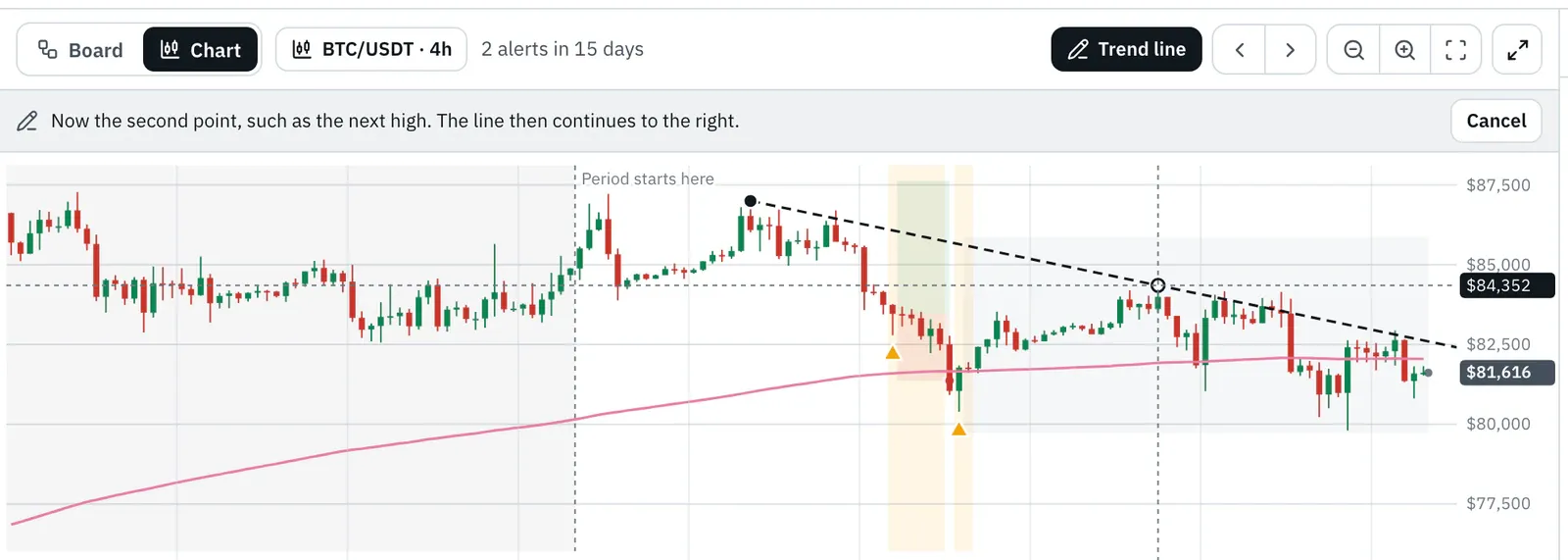
- Click Trend line at the top of the chart. Below it you see what comes next.
- Click the first point, such as a high. If the pointer is close to a candle’s high, low, open or close, the point snaps to it.
- Click the second point at another candle. The preview already shows the line as it continues to the right.
The editor then adds two nodes: the Trend line and a Compare A/B, “Price crosses above Trend line” if the price is currently below the line, otherwise “below”. The comparison goes where other conditions from the chart go (see above), and the chart shows the alerts of the past weeks right away.
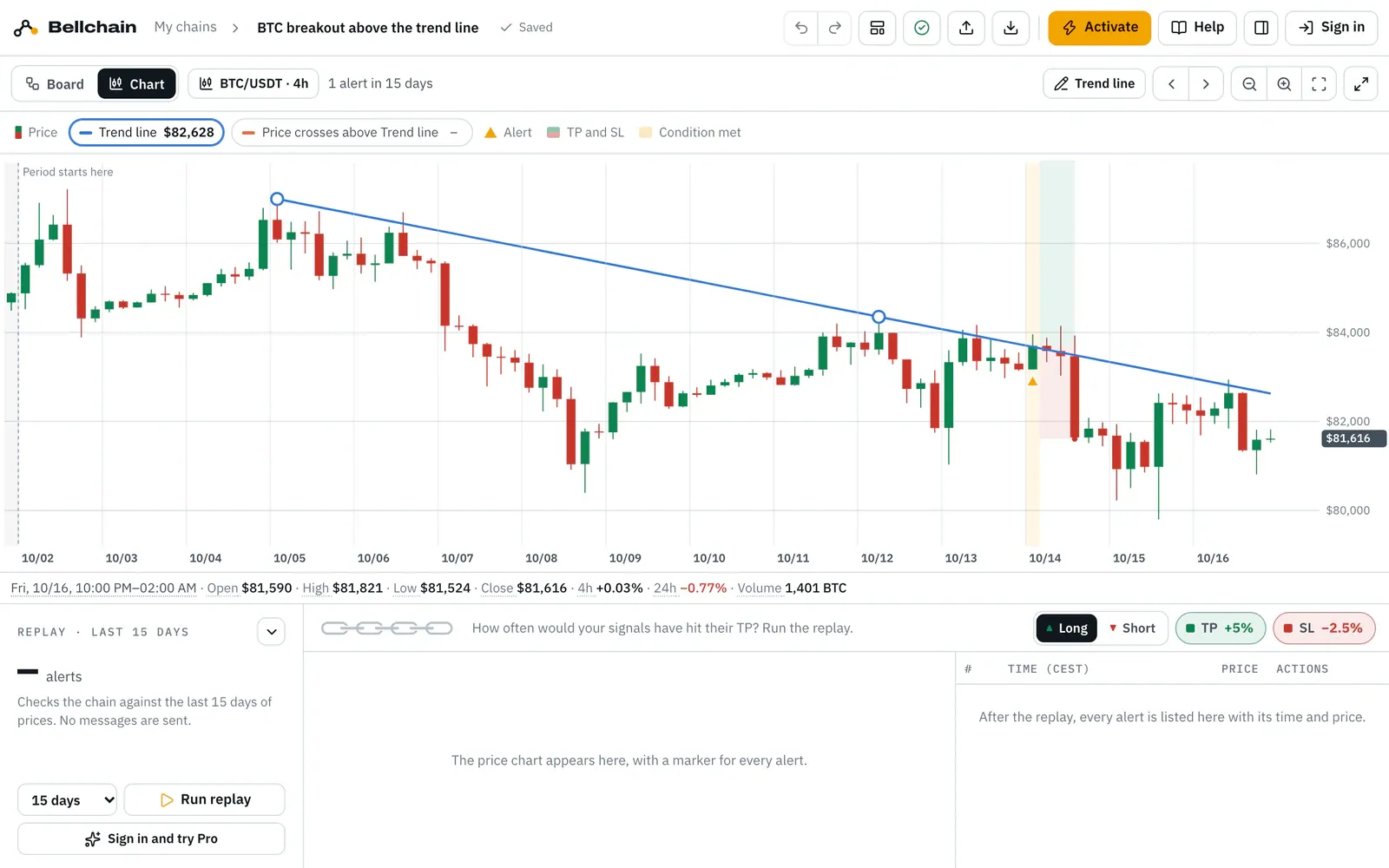
- Trend line button: draw with two clicks.
- First point.
- Second point.
- The condition “Price crosses above Trend line”.
- Alert at the breakout.
- Adjust: drag a point to move it, or grab the line itself to move it as a whole. The alerts follow while you drag.
- Keyboard: Tab reaches the points. The up and down arrow keys change the value, left and right the candle, with Shift in bigger steps. To draw, press Enter on the button, pick the candle with the arrow keys and set the point with Enter.
- Cancel: Esc or Cancel.
- From here: a right-click (a long press on a phone) also offers Draw a trend line from here: the first point then sits at that spot.
- In an oscillator pane: a trend line works there too, such as across the highs of the RSI.
The line starts at the first point and continues past the last candle, just as it shows in the chart; before that it does not apply. Time and value of the points are also in the trend line’s properties, the time in your time zone. A trend line from the node palette has no points yet: Draw the line on the chart in its properties opens the chart, and two clicks set it. More about the node under Trend line.
Zoom and jump
Section titled “Zoom and jump”- Zoom: mouse wheel or two fingers, plus the buttons −, + and Show all. Pan: drag on a free spot or swipe sideways.
- Candles or a line: when Show all puts a great many candles in view at once, say 2,400 on one screen, each would be narrower than a pixel, and bodies and wicks would blur into a grey band. So the chart then draws a line through the closes. The course stays readable, and alerts and layers stay in the same place. Zoom in, and the wicks come back from about one pixel per candle, whole candles from three pixels. The values in the line below the chart always belong to the candle under the crosshair.
- Alerts: the arrows ‹ › jump to the previous and next alert. The line below the chart gives the values of the candle and, on the right, the actions of the alert.
- Keyboard: click into the chart or Tab into it. The arrow keys move the crosshair (with Shift by ten candles), Home and End jump to the start and the end, Page Up and Page Down pan, plus and minus zoom.
- Full screen: the button on the far right shows the chart on the whole screen; Esc ends it.
On a phone
Section titled “On a phone”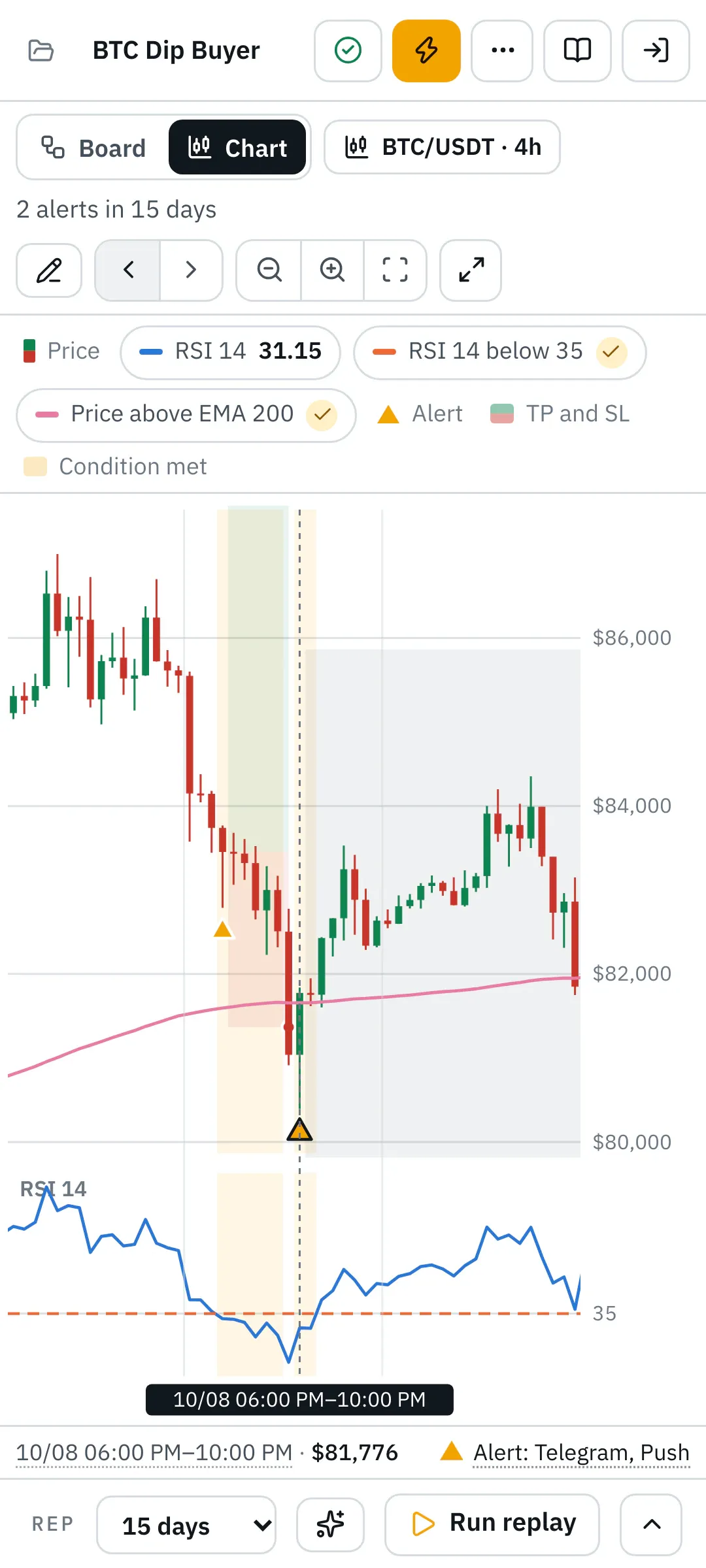
On a phone the chart gets the space: the replay collapses, and you open it again at the bottom. The line below the chart gives the time, the price and the changes on one line. A tap on a line or in the legend selects the node, Settings opens its properties. A long press opens the rules for that spot. You draw a trend line with the pen at the top of the bar and two taps.
Where the prices come from
Section titled “Where the prices come from”The chart uses the real prices of the exchange set in the candle, like the replay. If it can’t be reached right now, it uses stored sample prices and says so above the chart. Everything is calculated in your browser: that is why alerts and areas follow every move of a handle right away.
Version 2026.10.24.21 · Changelog