Alerts
Under Alerts you find everything your chains reported over the last 90 days. One entry is one chain on one candle: if the chain sends to Telegram and push at the same time, that is one alert with two channels. New alerts appear on their own, without reloading the page.
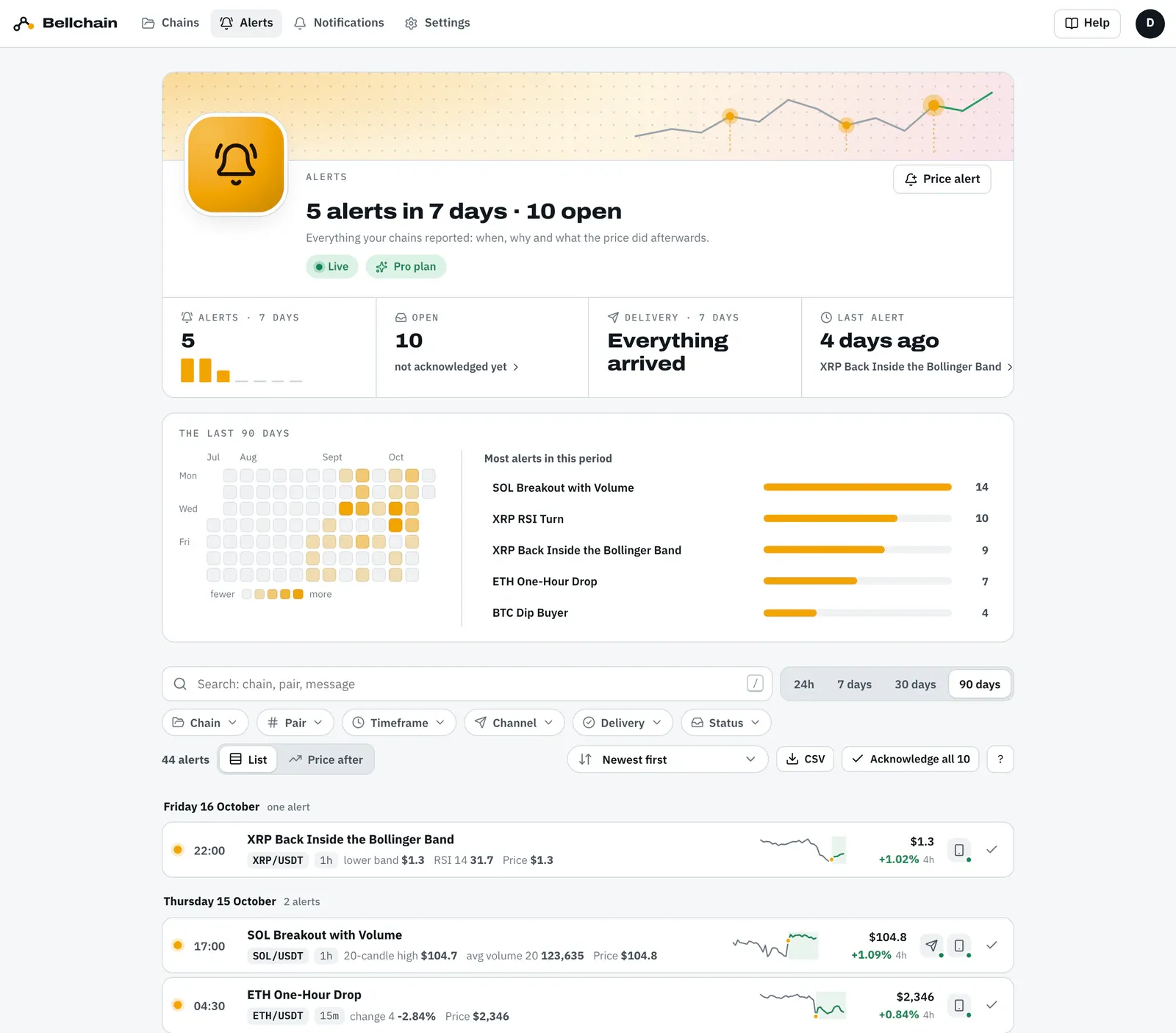
At the top of the page
Section titled “At the top of the page”- Alerts of the last 7 days as bars, how many are open (not acknowledged yet), whether everything arrived in the last 7 days and when the last alert came. A click on “not acknowledged yet” or “Show” filters the list accordingly.
- The calendar shows the alerts per day over the last 90 days, the darker, the more. A click on a day shows only that day, a second click clears it.
- Next to it are the chains with the most alerts in the period. A click shows only that chain.
The list is grouped by day. Each row shows:
| Part | Means |
|---|---|
| Dot | yellow: open, ring: acknowledged |
| Time | candle close, in your time zone |
| Chain, pair, timeframe | which chain on which market |
| Values | the same values as in the alert, for example RSI and price |
| Small price line | the candles around the alert, the alert as a yellow dot, afterwards in green or red |
| Price and move | price at the alert and the change afterwards, from Pro |
| Channels | Telegram, push, email …, the dot on the icon tells whether it arrived |
When several alerts come shortly after one another, at least three no more than 10 minutes apart, the list groups them as a burst, for example “5 alerts in 9 minutes”. A click expands it; the check mark next to it acknowledges all of them at once.
With a scanner each coin has its own row and is acknowledged on its own; Replay from here opens the replay with that coin.
Filter, search, sort
Section titled “Filter, search, sort”- Period: 24h, 7 days, 30 days or 90 days, plus a single day from the calendar.
- Filters: chain, pair, timeframe, channel, delivery (delivered, failed, not sent, muted, on the way), status (open or acknowledged) and test alerts. Each filter shows how many alerts in the period match.
- Search: by chain name, pair or message text.
- Sort: newest or oldest first, by chain or, from Pro, by the biggest move afterwards.
Filters and sorting are part of the page address. You can bookmark it or share the link; without any, the page opens with your last selection. On a phone, the filters are behind Filters.
Download as CSV
Section titled “Download as CSV”CSV above the list (on computers and tablets) downloads the alerts of the chosen filters as a file for Excel, Numbers or Google Sheets, on every plan. There is one row per alert: time in your time zone, chain, pair, exchange, timeframe, price, values, message, delivery per channel with the reason, when it was acknowledged and whether it was a test. From Pro, the price move afterwards is added, one column per time span.
The file follows your language: in English with commas and decimal points, in German with semicolons and decimal commas, which is what Excel expects there. It holds at most 10,000 alerts in the chosen sort order. Text a spreadsheet would read as a formula, such as a name starting with “=”, gets an apostrophe in front.
Why did the alert come?
Section titled “Why did the alert come?”A click on an alert opens it next to the list, on a phone across the whole screen.
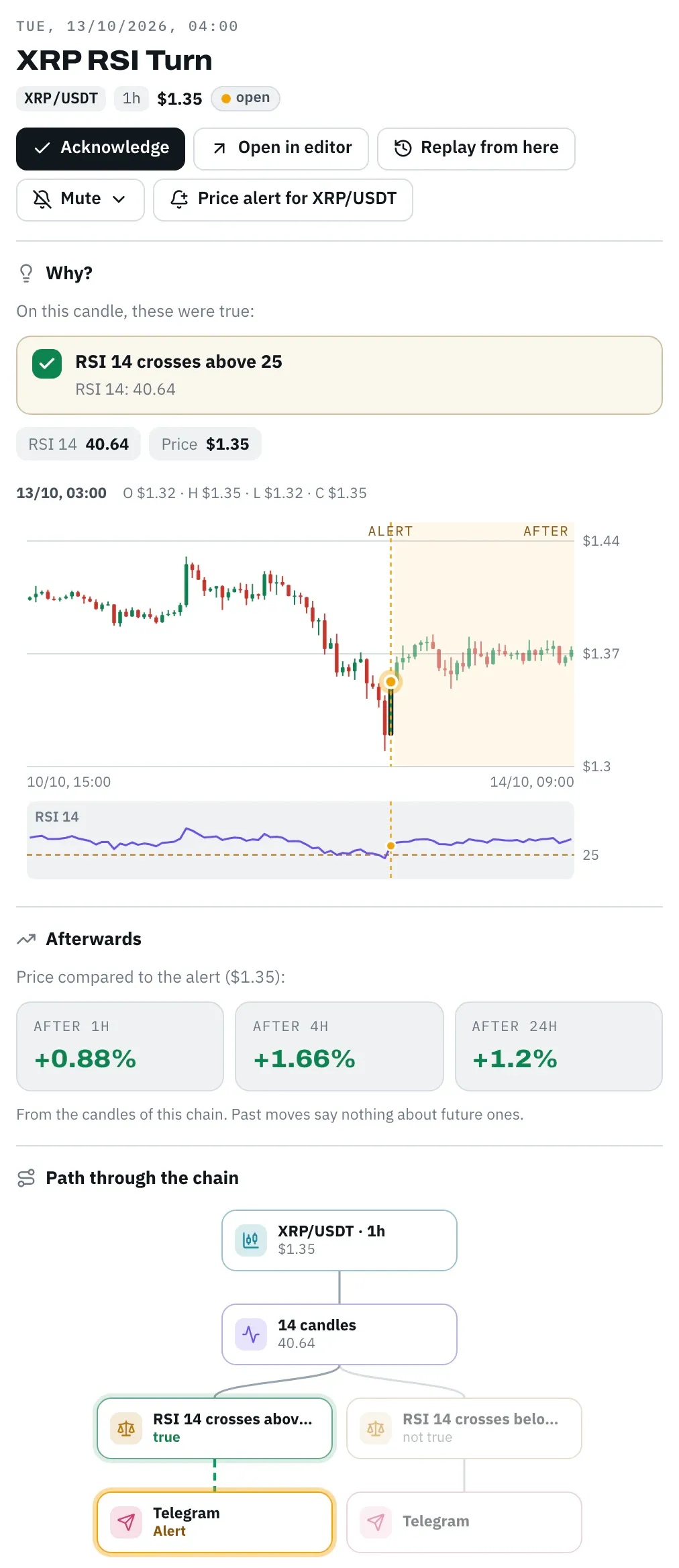
- Why? lists the conditions that were true on this candle, with the values that went in, for example “RSI 14 below 30” with “RSI 14: 27.69”.
- Candles around the alert: the candles before and after, the alert as a yellow line, the indicators of the chain as dashed lines and below a panel for values like the RSI with the threshold of the condition. With the mouse or your finger you see the values of each candle.
- Afterwards (from Pro): how the price changed after the alert. The time spans fit the timeframe of the chain: up to 1h after 1h, 4h and 24h, for 2h to 12h after 24h, 3 and 7 days, for daily candles after 3, 7 and 30 days, for 3-day candles after 3, 9 and 30 days; weekly and monthly candles have no “Afterwards”. The values are final once the time span has passed.
- Path through the chain: the chain as a small board from the candle to the action. What was true at the alert glows green, the action that fired yellow.
- Message and Delivery: the text as it was sent and, for each channel, where it went, whether it arrived and, if not, why, for example “Daily limit of your plan reached”.
Acknowledge, mute, open in the editor
Section titled “Acknowledge, mute, open in the editor”- Acknowledge marks an alert as seen; Mark as open undoes it. Acknowledge all above the list acknowledges all alerts of the selected filters. If you acknowledge in Telegram or in the email, the alert is acknowledged here too.
- Mute silences the chain for 1, 4, 8 or 24 hours, as under Notifications. It keeps running, its alerts only land here.
- Open in editor opens the chain, Replay from here starts the replay over a period that contains this alert and selects it there. That way you can try a different threshold right away.
- Price alert for BTC/USDT creates a price alert for this alert’s pair and suggests a level 5 % above its price. The price alert is also at the top of the page.
Price after, per chain
Section titled “Price after, per chain”From Pro, Price after above the list shows every chain with its alerts in the period: for each time span the median price change, the share of alerts after which the price rose, and every alert as a dot. That shows you which chain tends to report before rising or falling prices. This is data from the past, not a recommendation; past moves say nothing about future ones.
Keyboard
Section titled “Keyboard”While the focus is on the page, for example after a click into the list:
| Key | Action |
|---|---|
j / k |
next / previous alert |
Enter |
open alert |
e |
acknowledge or mark as open |
Esc |
close alert |
/ |
search |
? |
all shortcuts |
Version 2026.10.21.23 · Changelog