Board and nodes
The editor is where you build chains: nodes sit on a board and are connected through pins. Every chain starts at a source such as a candle and ends in at least one action that notifies you.
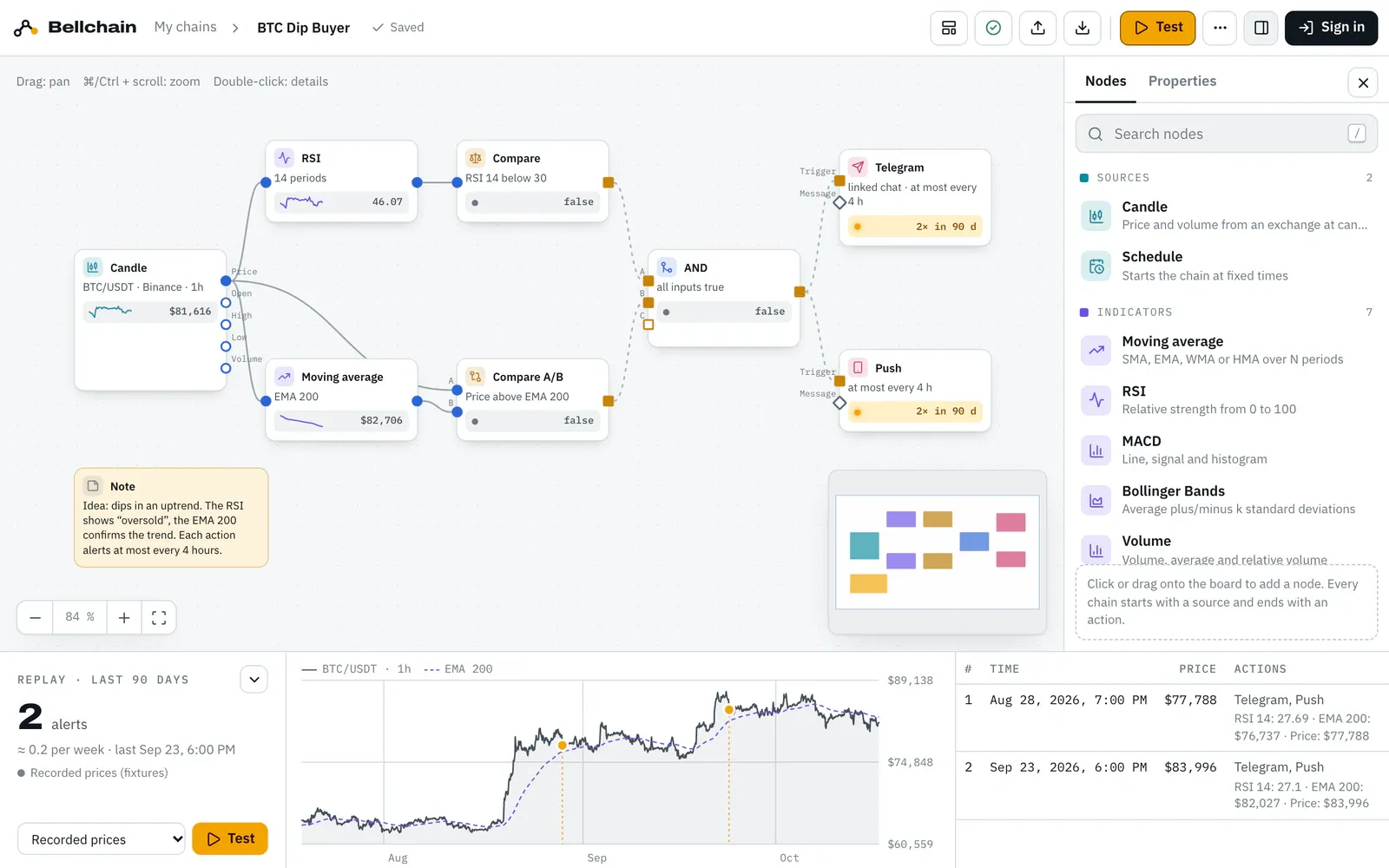
- Node panel with search and seven categories.
- Board: this is where nodes and their connections live.
- Live value of a node after the last test.
- Replay: alerts of the last 90 days.
The top bar
Section titled “The top bar”
- My chains and the chain name: click the name to rename the chain. Next to it you see whether it is saved.
- Templates opens the ready-made chains.
- The check shows “No errors”, “2 notes” or “1 error”. A click lists them, see Settings and notes.
- Import and Export exchange chains as JSON (below).
- Test starts the replay.
- The … menu sets language and appearance (light, dark, match system).
- The icon next to it shows or hides the node panel. On the far right is your account.
In a narrow window, templates, check, import and export only show their icon; the tooltip names them. Narrower still, import and export move into the … menu, and on a phone the templates do too.
Finding and placing nodes
Section titled “Finding and placing nodes”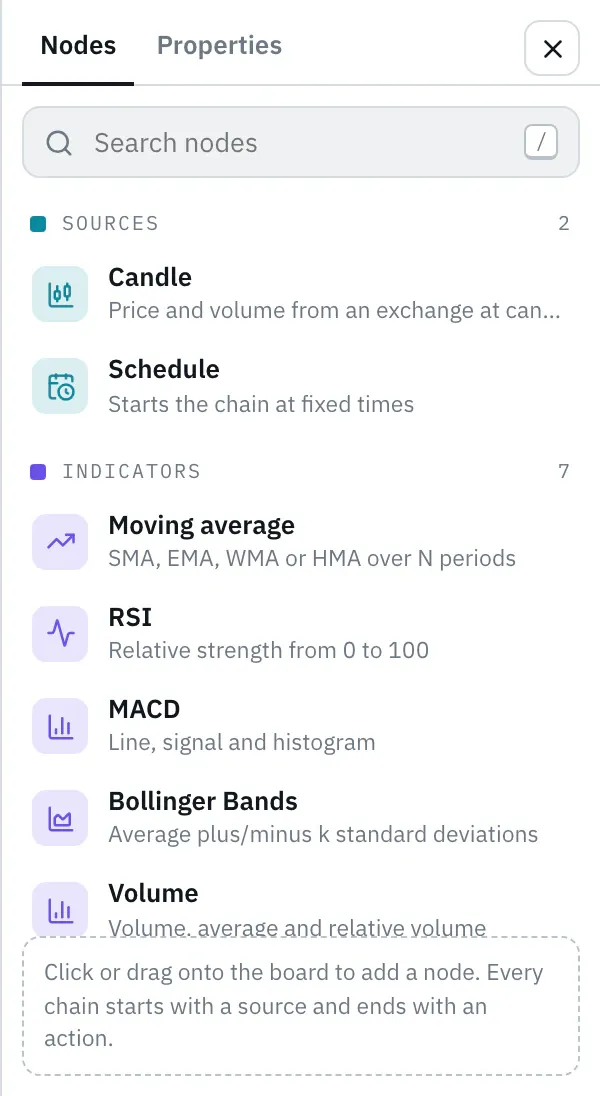
The panel on the right groups all nodes into seven categories, each with its own color: Sources, Indicators, Conditions, Logic & timing, Data & text, Actions and Tools. What each node can do is in the reference.
- Drag places a node where you drop it. Click places it in the middle of the board.
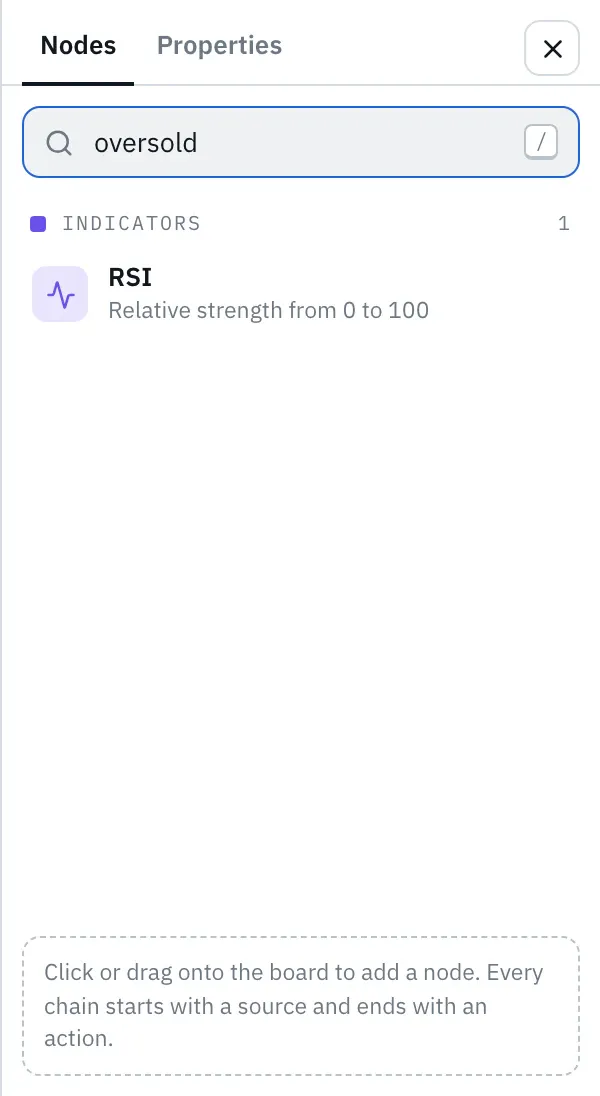
- Search (key /) also finds nodes by terms that aren’t in their name. “oversold”, for example, finds the RSI.
Working on the board
Section titled “Working on the board”Every card shows an icon and name, a short sentence such as “RSI 14 below 30” and, after a test, its latest value. Inputs are on the left, outputs on the right. How connections are made is explained under Connecting pins.
- Move: drag cards. Pan the empty board by dragging or scrolling.
- Zoom: hold ⌘/Ctrl and scroll, or use “Zoom in”, “Zoom out” and “Fit view” at the bottom left. The minimap at the bottom right shows the whole board.
- Select several: hold ⇧ and drag a frame.
- Delete: remove the selection with Delete or ⌫, or click “Remove” under “Properties”.
- Details: double-click a card to see inputs, settings and the values of the latest candles.
- Notes: the Note node from the tools explains the idea of a chain on the board. It doesn’t compute.
Keyboard shortcuts
Section titled “Keyboard shortcuts”- ⌘/Ctrl + Enter
- Test
- ⌘/Ctrl + S
- Save (happens automatically anyway)
- /
- Open the node search
- Esc
- Clear the selection, close quick add
- Delete or ⌫
- Remove selected nodes or connections
- ⌘/Ctrl + scroll
- Zoom
- Double-click
- Node details
Saving
Section titled “Saving”The editor saves every change by itself.
- Without an account your chains are stored in this browser. The top bar reads “Saved”, hovering over it shows “Saved in this browser”. They are lost if you clear the site data and aren’t visible on other devices. In the private mode of some browsers saving doesn’t work at all; the top bar then reads “Not saved”, and hovering over it shows the reason: “Not saved: the browser blocks storage”.
- With an account the editor saves to your account; hovering over “Saved” then shows “Saved to your account”. When you first sign in, the chains from the browser move along, see Account.
Under My chains you open other chains, create a new one or delete one.
Import and export
Section titled “Import and export”Every chain can be shared as text, just like in n8n.
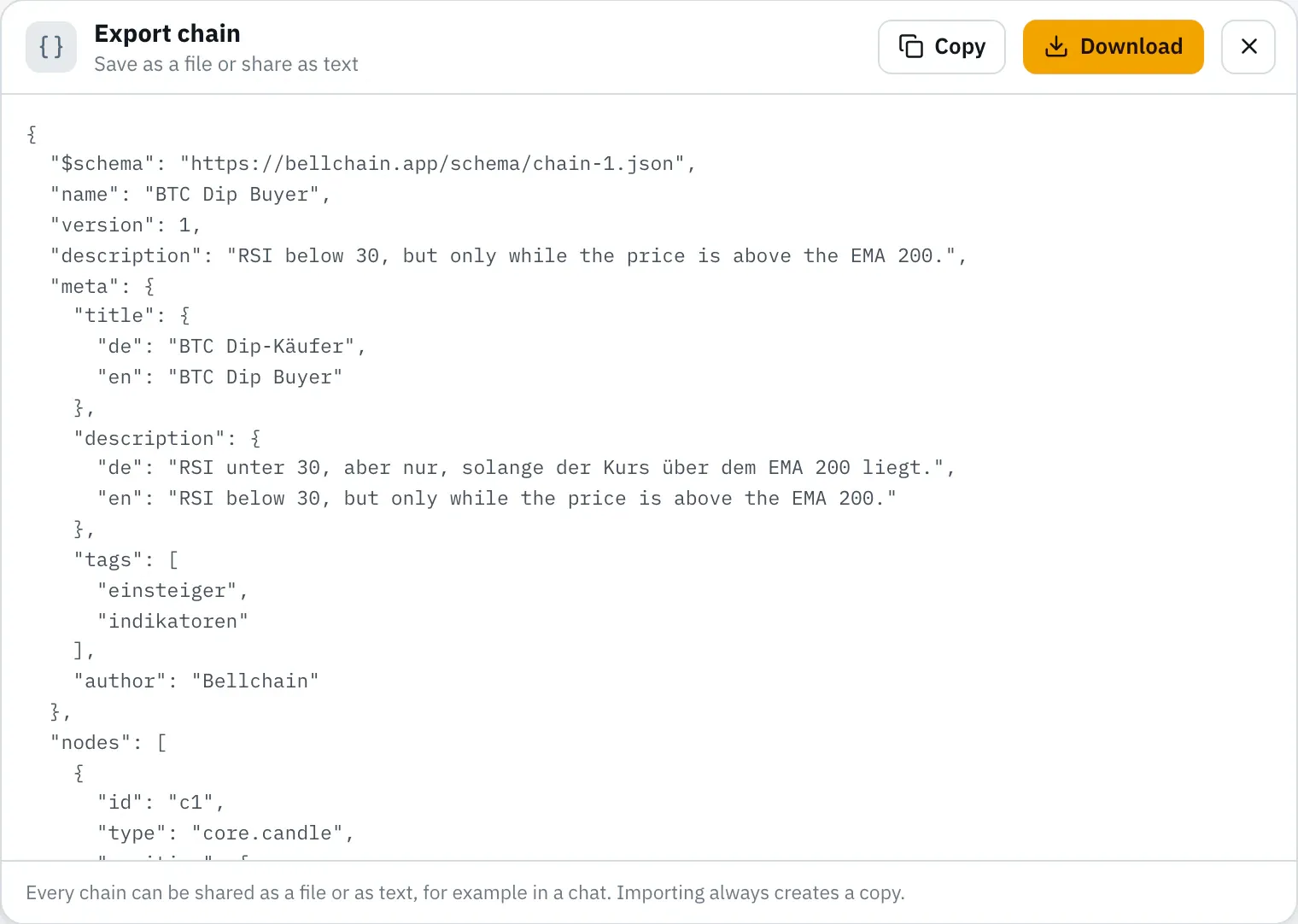
Export shows the chain as JSON. “Download” saves it as a file, “Copy” puts it on the clipboard.
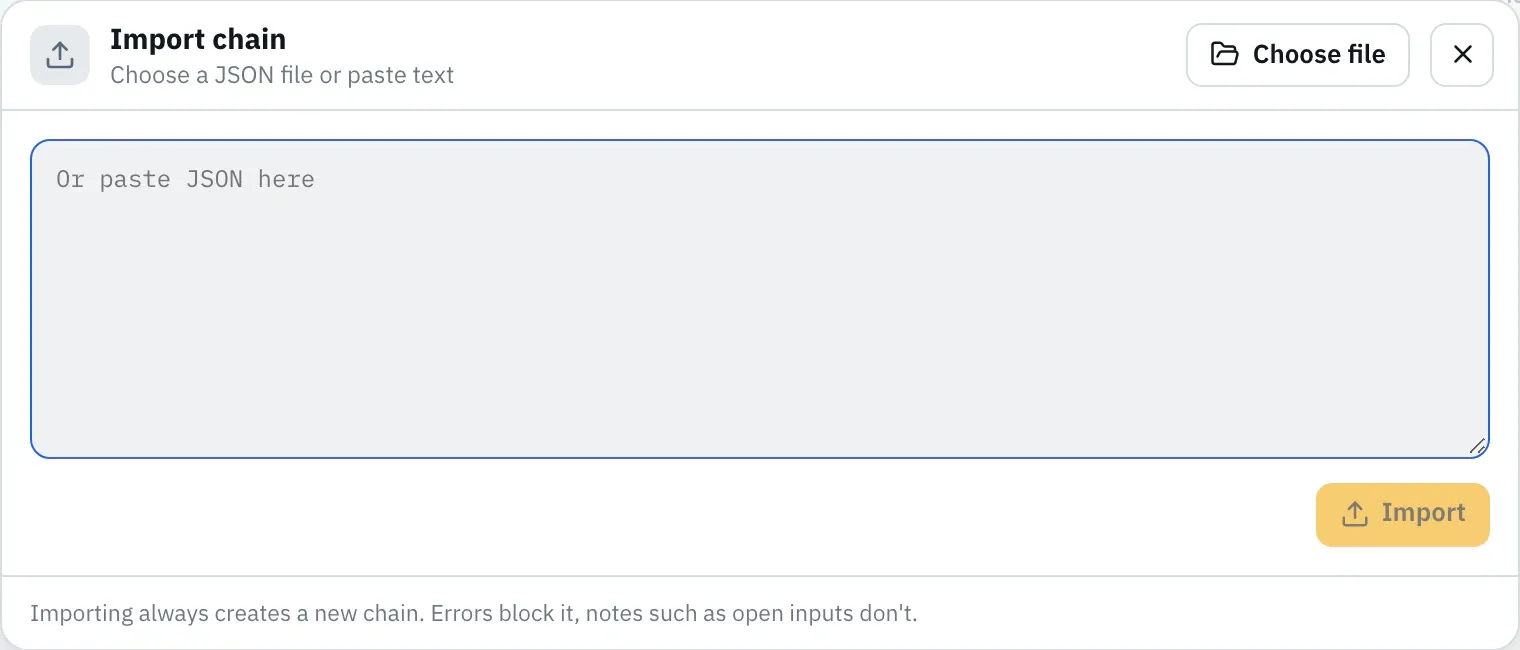
Import takes a file or pasted text. Bellchain checks the chain first: errors block the import, notes such as open inputs don’t. An import always creates a new chain and leaves your existing ones unchanged. The format is described in Chain format.