Push on iPhone, Android and desktop
Push shows alerts right on your device, even when Bellchain isn’t open. Every device signs up on its own, so you set up your phone and your laptop one after the other. You don’t need an app from the App Store; Bellchain can be installed as a web app.
On iPhone and iPad, push works only for web apps on the Home Screen, from iOS and iPadOS 16.4.
-
Open app.bellchain.app in Safari.
-
Tap the Share icon at the bottom (square with an arrow pointing up), then Add to Home Screen and Add.
-
Open Bellchain from the new icon on your Home Screen and sign in inside the app: Sign in, enter your address, Send link. Then type the six-digit code from the email into the field Code from the email. Don’t tap the link in the email for this: it opens Safari, not the app.
-
Tap Notifications and Enable push on this device. Confirm the iOS prompt with Allow.
-
Tap Send test.
If you open the notifications in Safari instead of the app, Bellchain explains the way via the Home Screen:
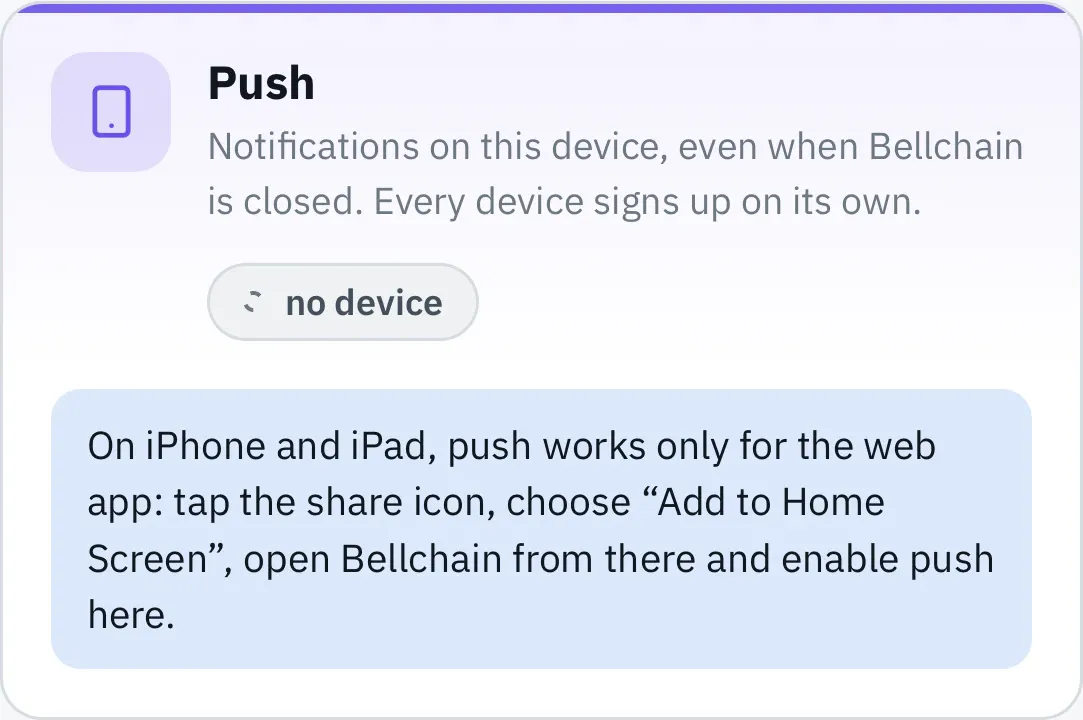
If nothing arrives, check Settings → Notifications → Bellchain and turn off any active Focus.
-
Open app.bellchain.app in Chrome and sign in.
-
Optionally install it as an app: menu ⋮ → Install app (or Add to Home screen). Bellchain then sits on your home screen like an app. Push also works without installing.
-
Open Notifications and tap Enable push on this device. Confirm with Allow.
-
Tap Send test.
If nothing arrives, allow notifications for Chrome (or Bellchain) in the Android settings under Apps. If battery saving is set to strict, exclude Chrome from it, otherwise notifications arrive late.
Push works in Chrome, Edge, Firefox and Safari from macOS 13.
-
Open app.bellchain.app and sign in.
-
Under Notifications, click Enable push on this device and allow notifications when the browser asks.
-
Click Send test.
Optionally install it as an app, with its own window and an icon in the Dock or taskbar:
- Chrome and Edge: the install icon on the right of the address bar, or “Install Bellchain” in the menu.
- Safari on the Mac (from macOS 14): menu File → Add to Dock.
On the desktop, notifications arrive as long as the browser is running, even without an open Bellchain window.
Several devices
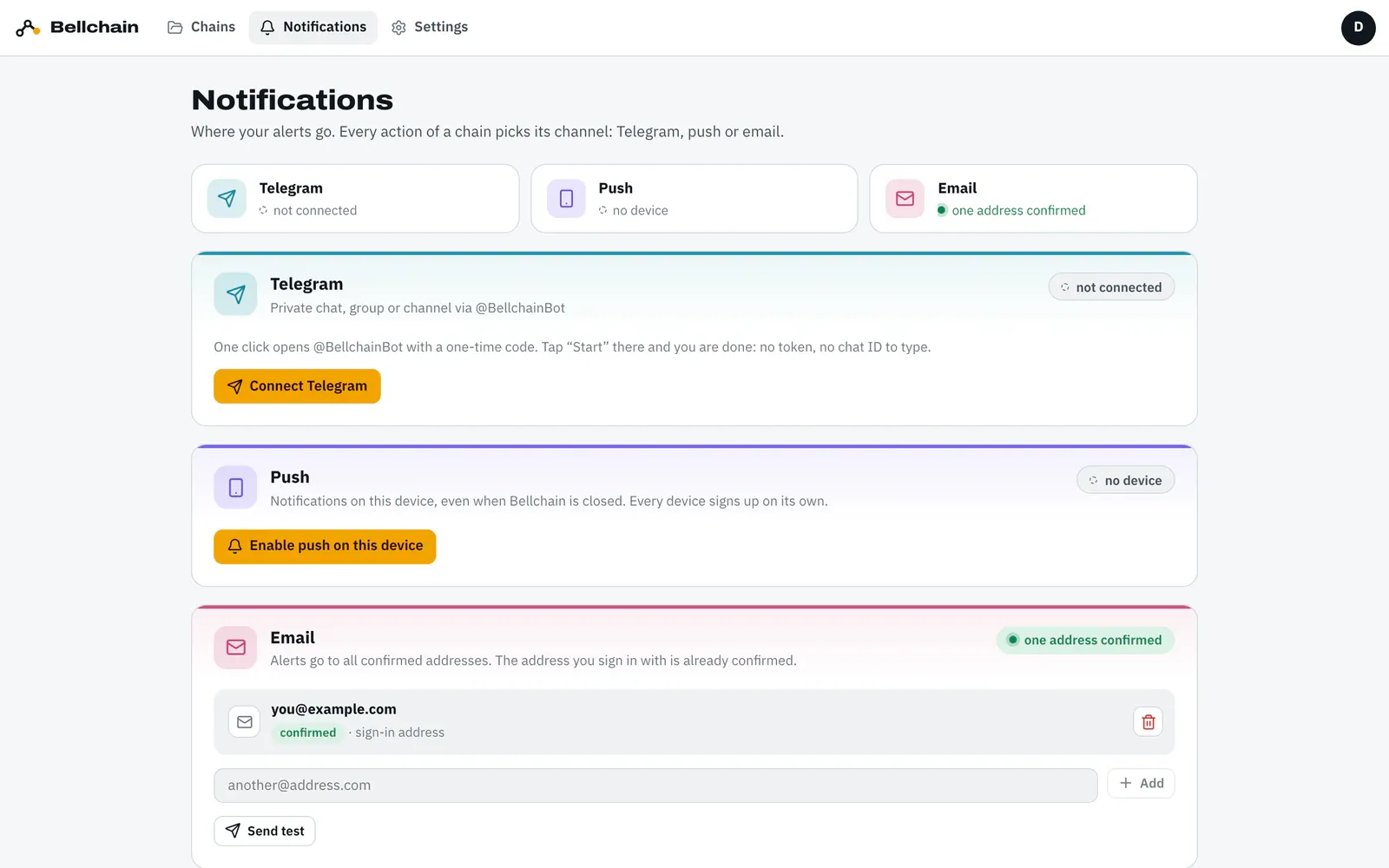
Section titled “Several devices”Under Push all devices are listed with names such as “macOS · Chrome” or “iPhone · Safari · Web-App”. Turn off here signs out the current device, the trash can removes another one. An alert goes to all devices.
When the browser blocks
Section titled “When the browser blocks”If it says “Notifications are blocked for Bellchain”, you chose “Block” at some point. Allow notifications in the browser’s site settings (usually via the lock icon on the left of the address bar) and reload the page.